
Key takeaways
- →A deployment is the same agent under a different name: same container image, same project, same secrets, nothing to copy or keep in sync.
- →Every agent ships with a reserved deployment called production. It is the default target of every command and it never sleeps.
- →One command creates staging: lk agent deploy --deployment staging, with -d as the short form. The same flag appears in seven places.
- →Non-production deployments sleep for free and cold start on the first request. Ship allows two per agent, Scale five.
- →lk agent delete without the deployment flag deletes the whole agent, production included.
The change is always small. A new system prompt, a different model, one extra tool. The agent has been answering real calls for weeks and the developer wants to ship an improvement. Everything passes locally, which proves almost nothing: local runs do not have your production secrets, your real telephony path, or the callers who say things nobody on the team would think to say.
So you need somewhere in the wild to point real traffic at. Until recently that meant standing up an entire second agent, and the cost of that second agent was not the compute — it was the bookkeeping. This guide walks the alternative: a staging copy that runs the same container image as production, in the same project, on the same secrets, that you can call for real and promote in one command. It also covers the four rules that catch people out, because two of them delete or interrupt things you did not intend to touch.
Step 1: understand why a second agent is not a staging environment
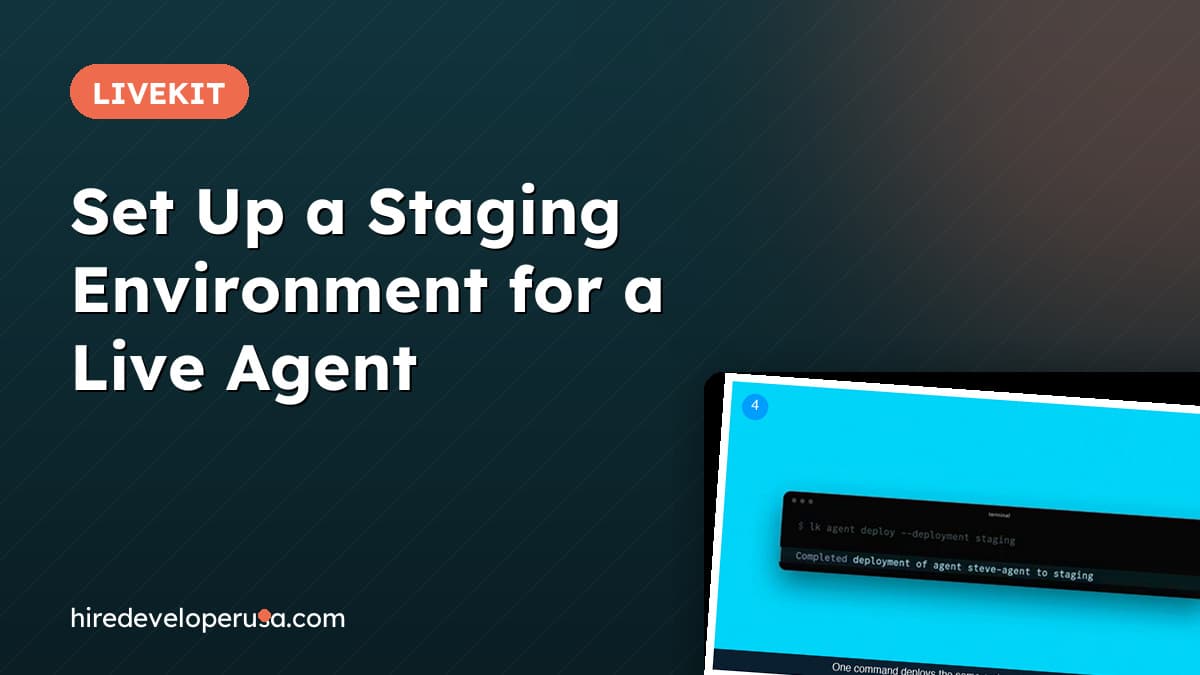
The obvious way to test a change in the wild is to build a copy. Give it a name, give it a project, give it API keys, give it the same set of secrets, and now you have somewhere to experiment that is not answering customer calls.
It works, and it keeps working right up to the first time somebody updates one side and not the other. A rotated key goes into production and not into the copy. A new secret is added to the copy during a spike and never makes it back. From then on the thing you are testing against is not the thing your customers are talking to, and the test result is worth whatever the difference between them happens to be. Nobody notices the drift while it is happening; they notice it the day a change behaves differently in production than it did in the copy.
The deeper problem is that the drift is structural. Two agents means two of everything, and keeping two of everything in sync is a chore that gets skipped under pressure — which is exactly when you most need staging to be honest.
Step 2: learn what a deployment actually is
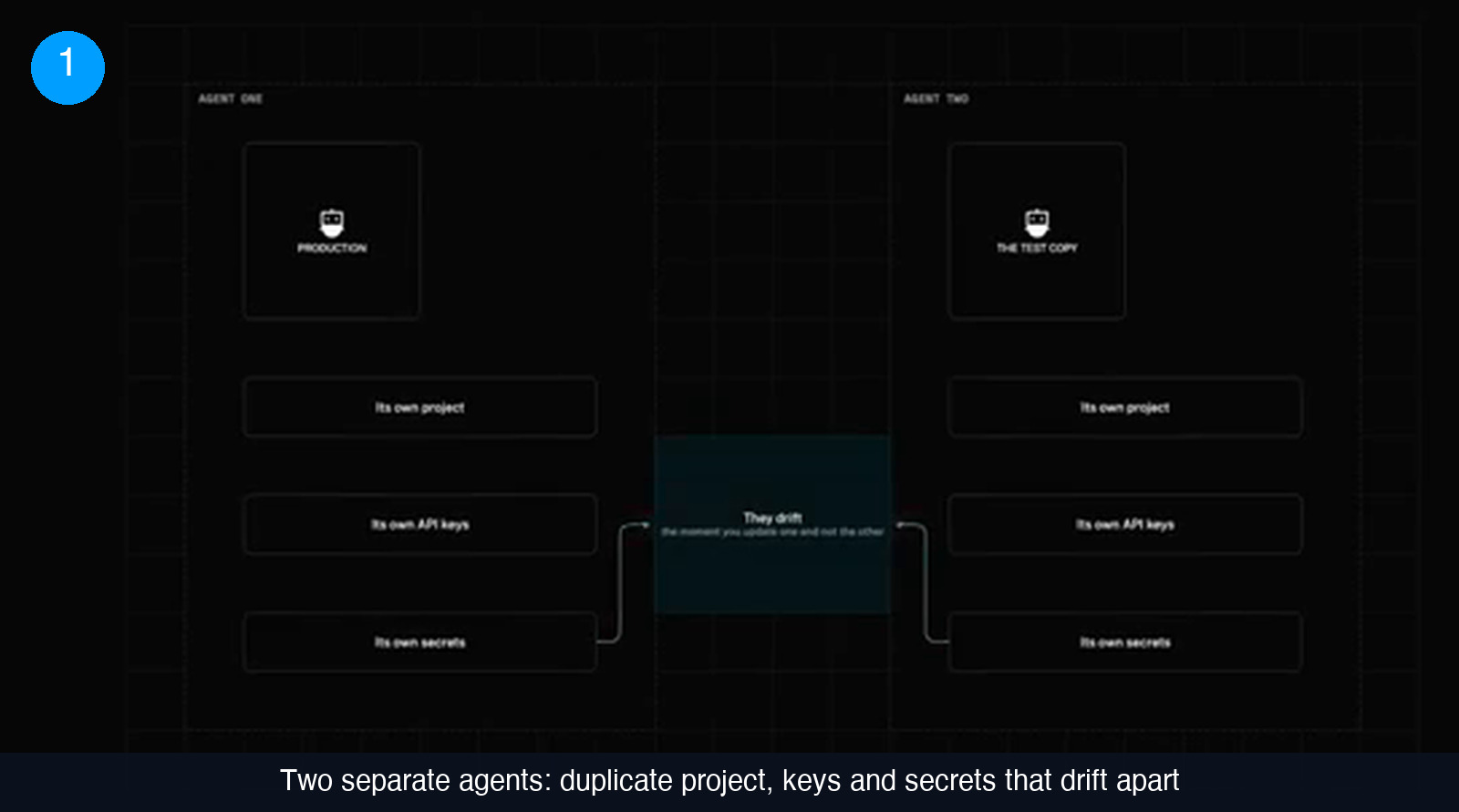
An agent deployment is your agent running under a different name. Not a different agent — the same one, from the same container image as production, inside the same project, using the same secrets. You can have several running at once.
Two consequences matter for how you organise the work:
- There is nothing to copy. Secrets are shared across deployments. Rotate a key once and every deployment has it. There is no second place to remember and no sync step to skip.
- Production is already one of them. Every agent gets a reserved deployment called production, created with the agent itself. It is the default target of every command, and once you deploy it, it stays running. The deployments you add next to it are the new part.
That last point is what makes the rest of this guide readable. Every command you already run is addressing production implicitly. Setting up staging is not a new workflow — it is the same commands with a name attached.
Step 3: check the SDK floor before you create anything
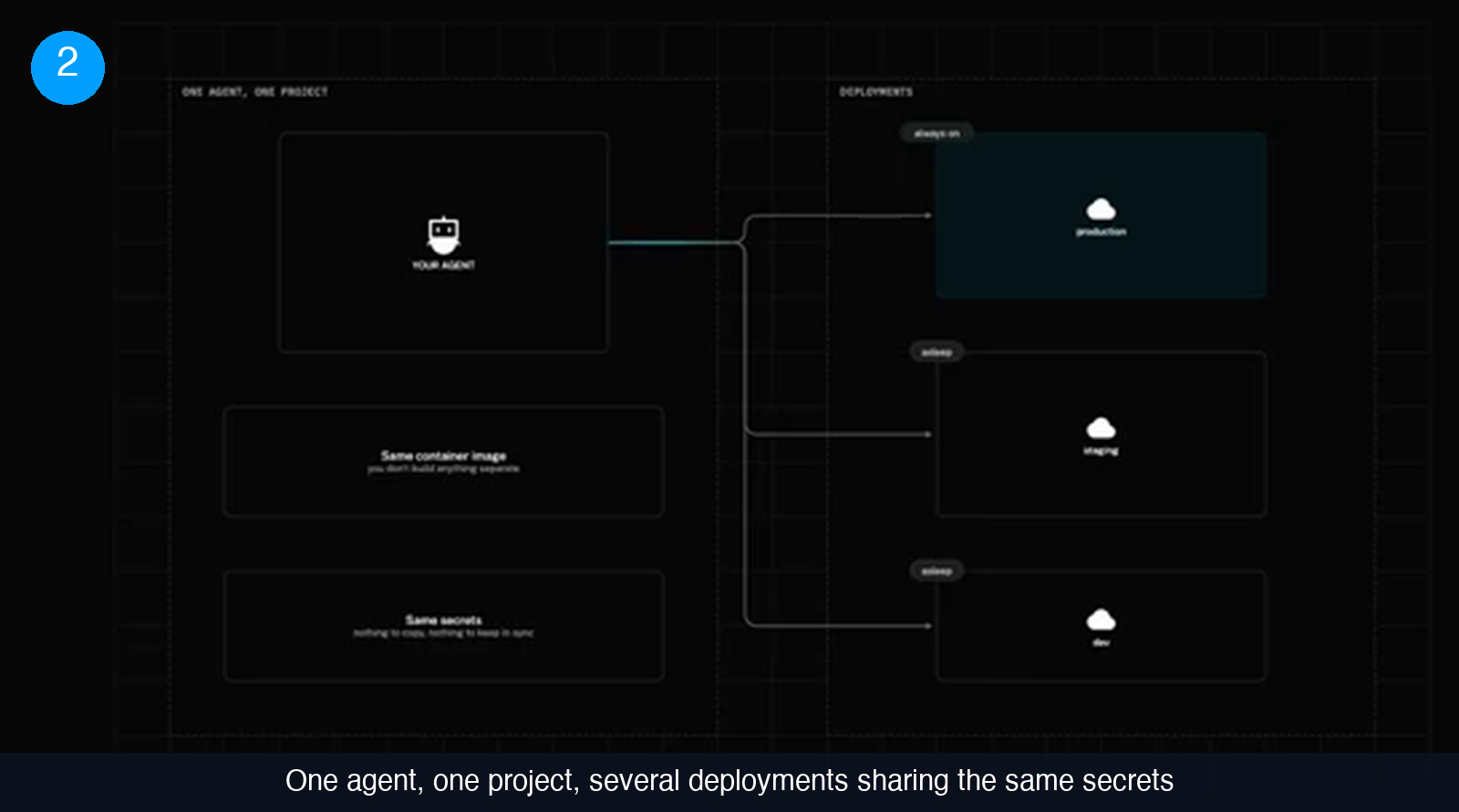
Deployments need a recent agents SDK. On Python that is livekit-agents 1.6 or later; on Node it is @livekit/agents 1.7.1 or later. Ask for the version before anyone runs a command, because the failure mode below the floor is quiet rather than loud.
An agent on an older SDK does not refuse to start. It comes up as production. The calls you carefully targeted at staging never arrive there, and the build you meant to keep away from customers starts taking real traffic instead. There is no error message to catch that; you find out from the transcripts.
Upgrade first, then create the deployment. It is a one-line dependency bump and it is the only prerequisite in this whole process.
Step 4: bring the staging deployment up with one command
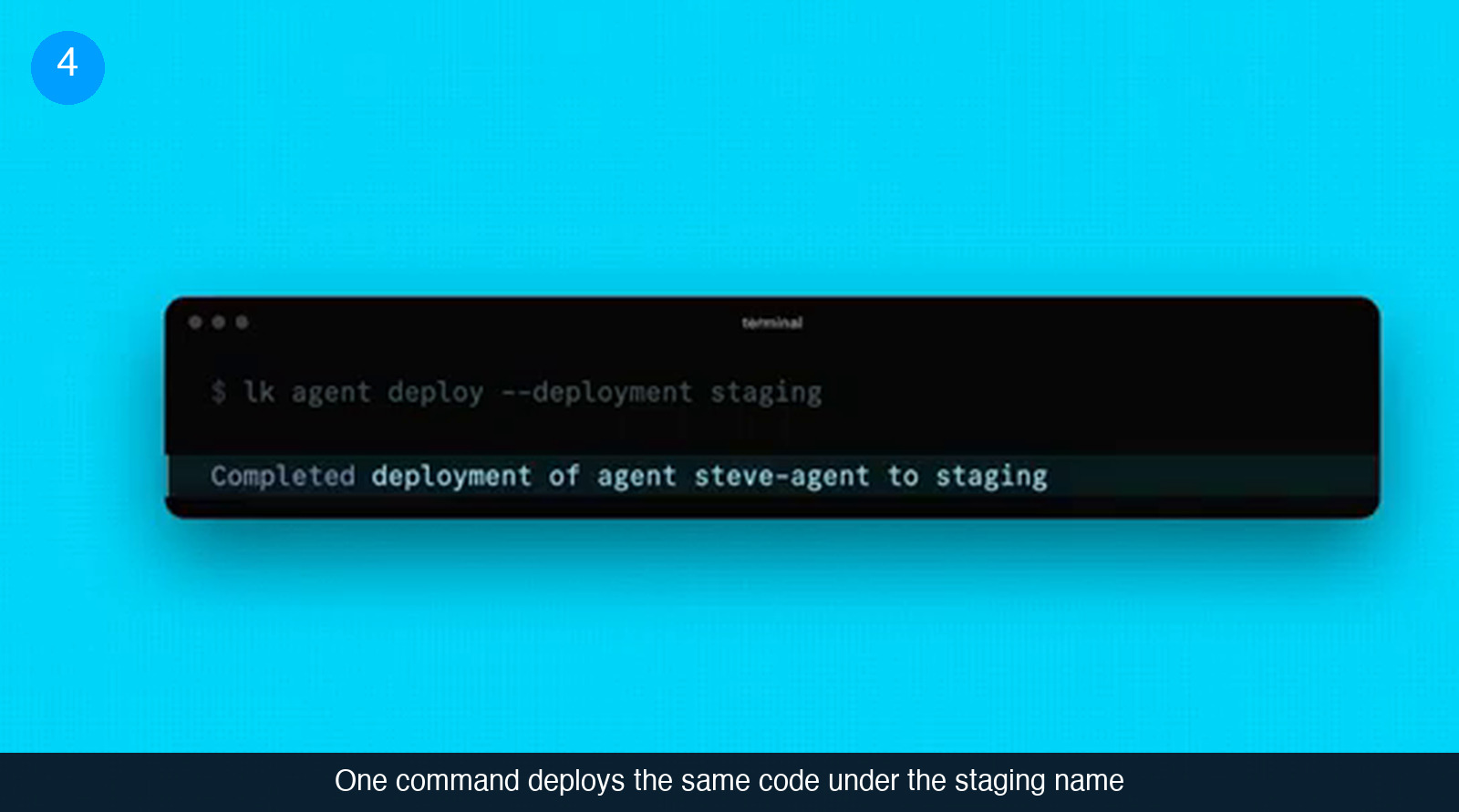
There is no new project to create and no code to change. You point a build at a name and it comes up next to the production build:
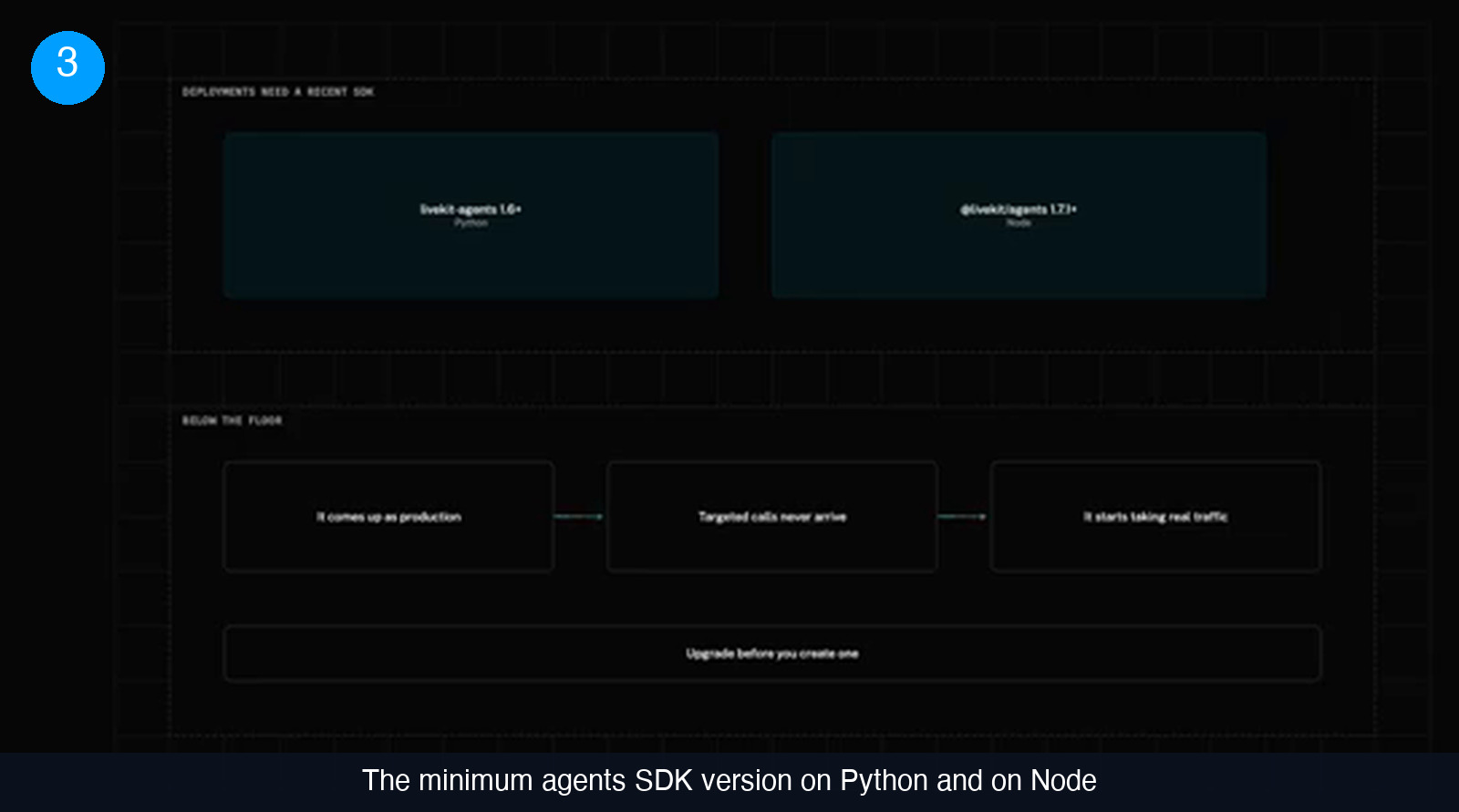
lk agent deploy --deployment staging
The CLI confirms with a line naming both the agent and the target, along the lines of Completed deployment of agent steve-agent to staging. That is the whole setup.
The same flag then follows you everywhere, which is the part worth memorising. It appears in seven places and it is the same flag every time: create, deploy, promote, logs and delete, plus lk token create and lk dispatch create. There is a short form, -d. On create, deploy and logs you can leave it off entirely when you are working with production.
Three commands do not take it at all: status, versions and list. Instead of asking you which deployment you mean, they show a deployment column, so a single command tells you the state of every deployment at once.
Step 5: send real calls to staging without touching agent code
A staging deployment nobody calls tells you nothing, and this is where the second-agent approach used to leak into your codebase. It does not have to. LiveKit Cloud tells the agent which deployment it is running as, so the agent code is identical across all of them.
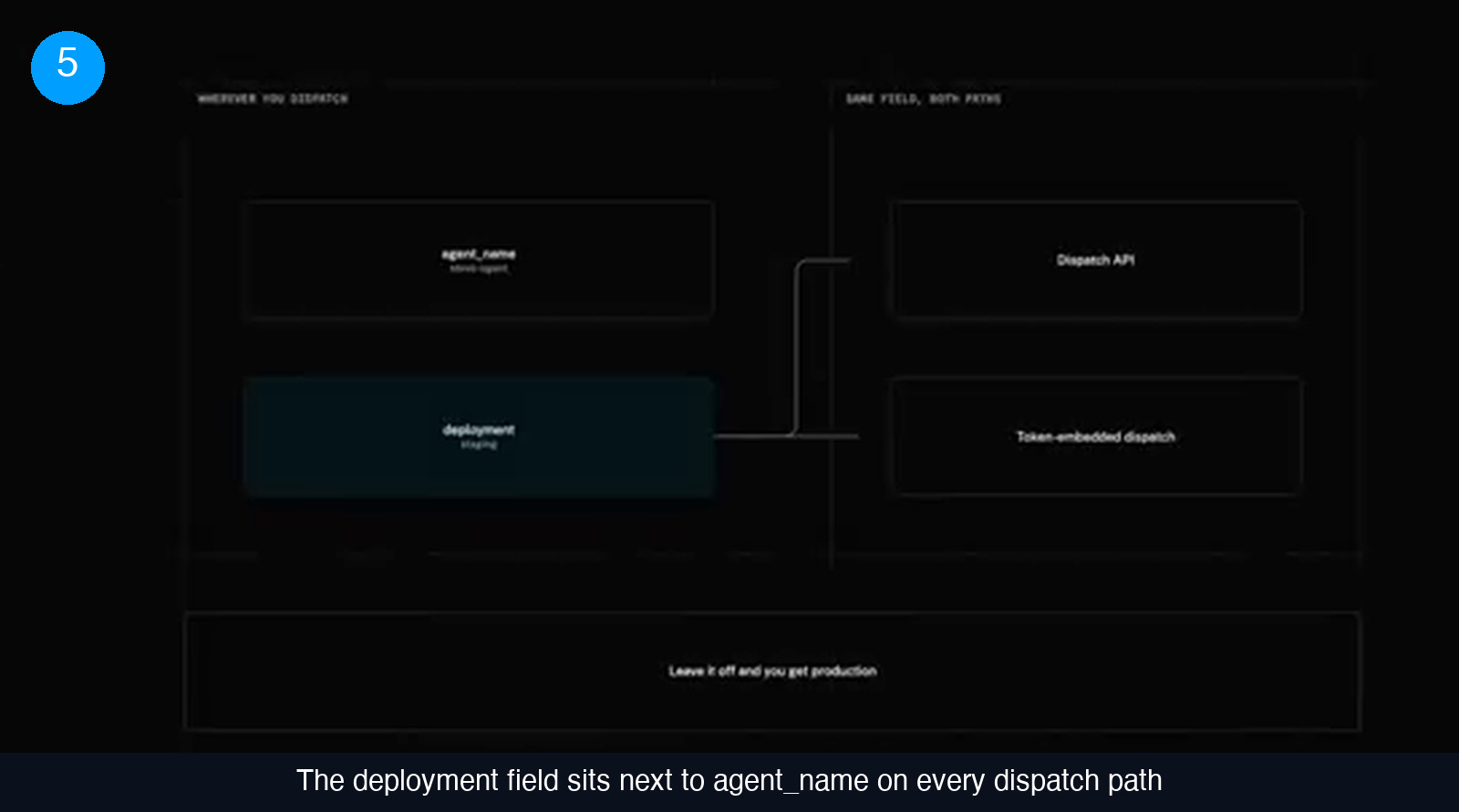
The change is on your side, where you dispatch. Wherever you already pass agent_name, add a deployment field next to it and set it to staging. Leave the field off and you get production, exactly as before — which means existing callers keep working untouched while you test.
- Set
deploymentalongsideagent_namein the dispatch you use for testing. - Use the same field on the dispatch API, or on token-embedded dispatch, depending on which path your app uses. It is the same field on both.
- Make real calls. Same code, same secrets, different name.
Because the field is optional and defaults to production, you can hand a developer a staging deployment without asking anyone to change how the live product dispatches calls.
Step 6: keep it cheap while idle, then promote what you tested
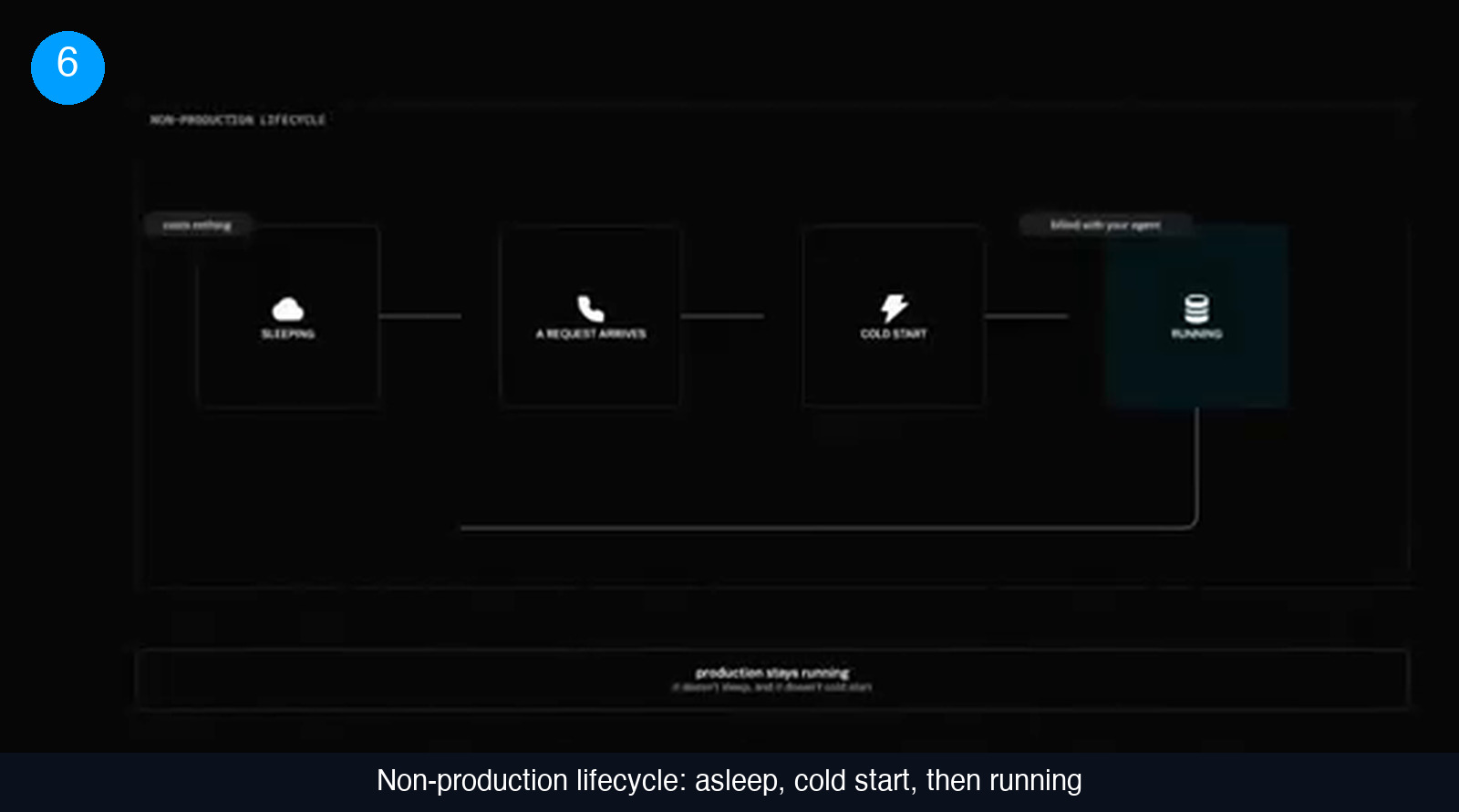
The reason a non-production deployment is worth keeping around rather than tearing down after every test is its lifecycle. It sleeps when nobody is using it. It cold starts on the first request. While it sleeps it costs nothing, and while it is awake its compute rolls into your agent’s existing bill rather than opening a separate line item. A staging deployment you touch twice a week sits idle the rest of the time and the idle time is free.
Production behaves differently on purpose: it does not sleep and it does not cold start. That asymmetry is the deal — you accept a cold start on the copy you are experimenting with, and customers never meet one.
Capacity is set by plan. Agent deployments are available on the Ship plan and above: Ship gives you two per agent, Scale gives you five. For most teams two is the shape you want anyway — production plus one place to iterate.
When the change has survived real calls, promote it. Promote moves that exact image over into production: the artefact you tested is the artefact that ships, with no rebuild in between and no window where the two could diverge.
Four rules that bite
The setup is genuinely one command. The operational rules around it are where the surprises live, and three of the four are irreversible in the moment.
- Delete without the flag removes the whole agent.
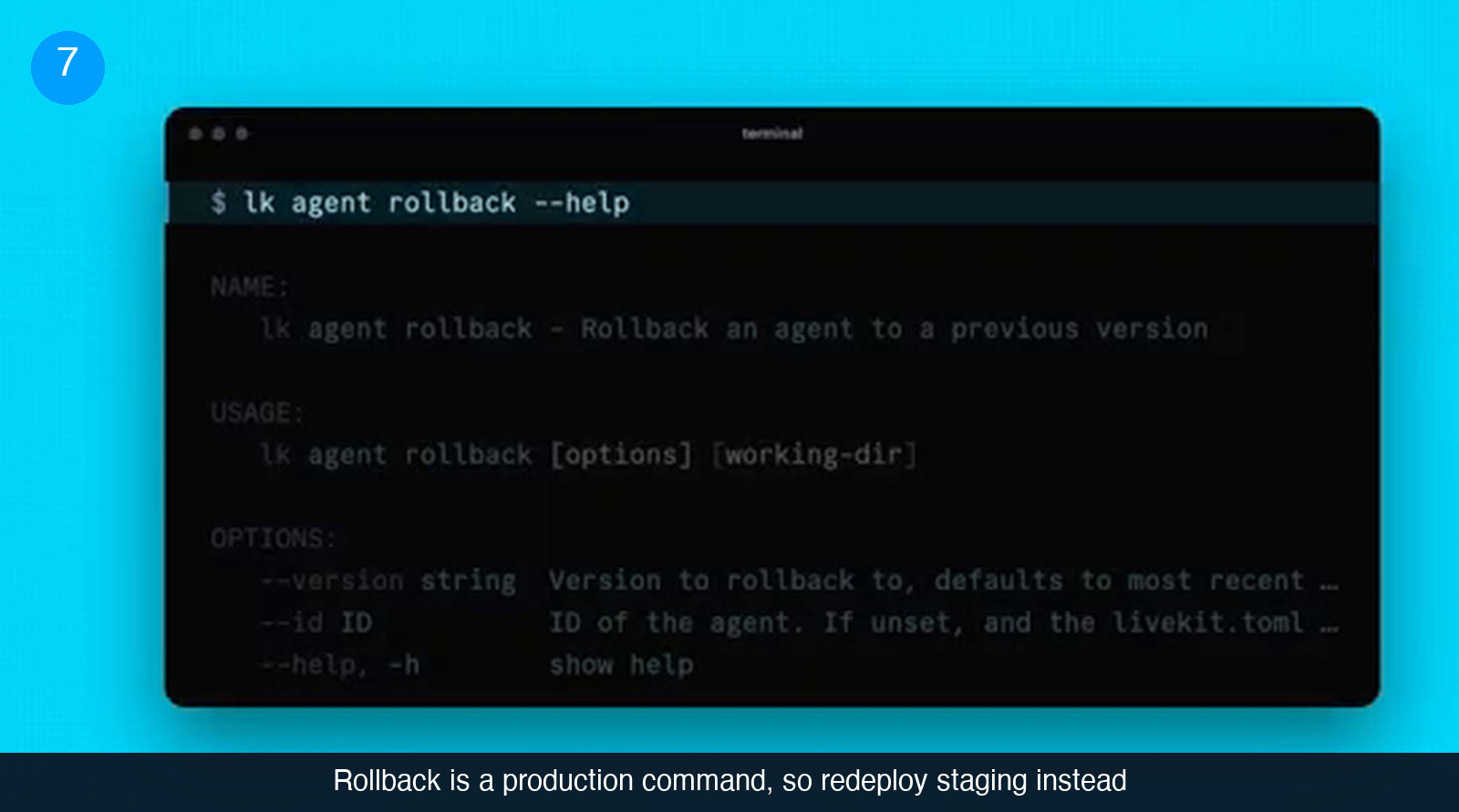
lk agent deletewith no deployment flag deletes the entire agent, production included. Pass the deployment name whenever you only mean to remove a staging copy. This is the one to put in writing before you hand out CLI access. - There is no rollback on non-production deployments. Rollback targets production. On staging, the way back from a bad build is to redeploy the previous one.
- Redeploying staging cuts active sessions immediately. Any call in progress on that deployment ends there and then. Production drains instead, giving active sessions up to an hour to finish. Keep traffic you cannot interrupt on production and treat everything else as a place to iterate.
- Deployments are not a substitute for a review step. Staging tells you whether a change works, not whether it should exist. That judgement still happens before the merge — see our guide to reviewing a pull request without flooding the team.
Where to look when staging misbehaves
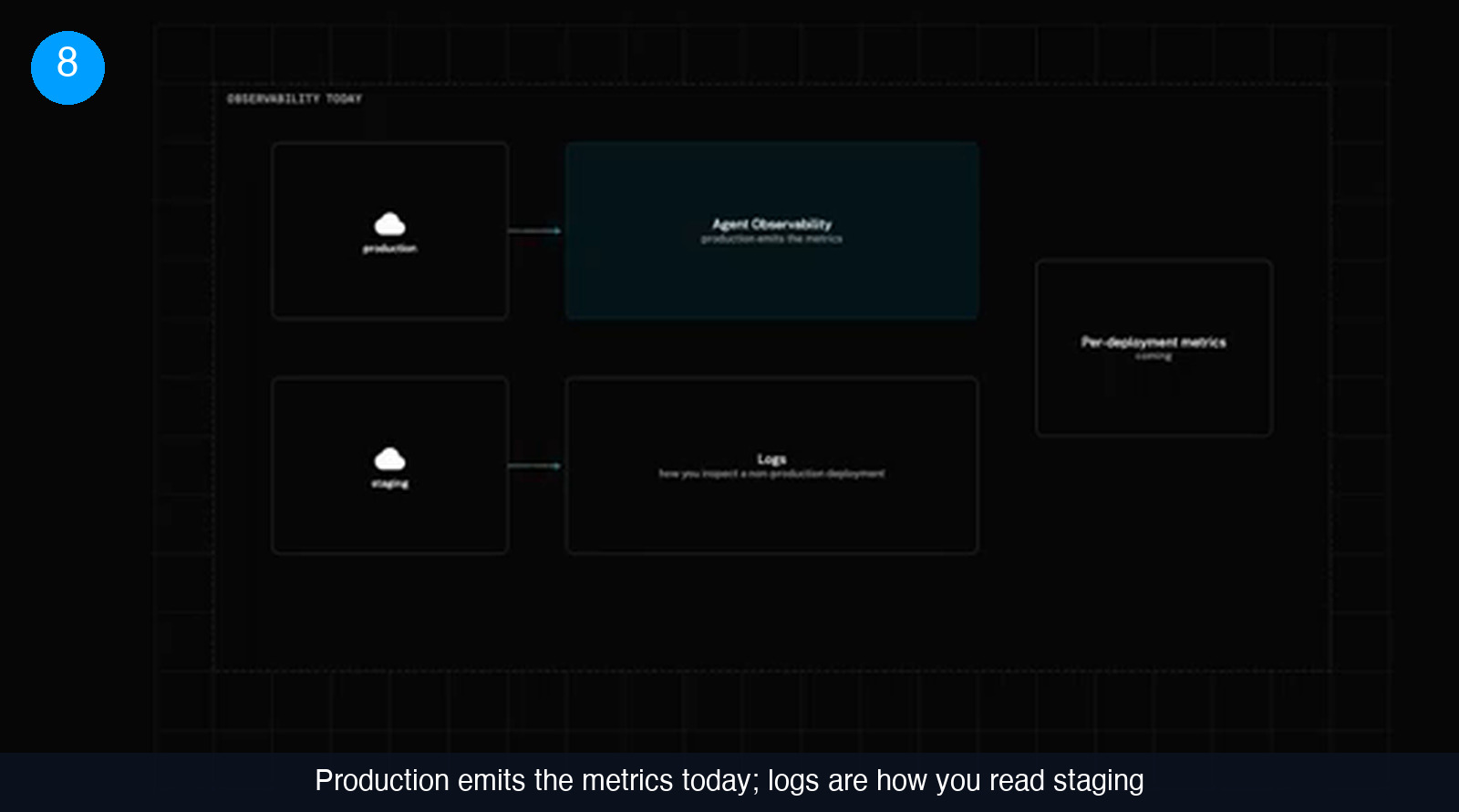
One gap is worth knowing before you plan around it. Today, production is the deployment that emits metrics to agent observability. A staging deployment will not show up on those dashboards, so the way you inspect a non-production deployment is logs — the same command with the deployment flag pointed at the name you gave it. Per-deployment metrics are on the roadmap, but do not build a testing process that assumes they are already there.
In practice that shapes how you review a change. Metrics answer questions about aggregate behaviour over time, which is a production question anyway. Staging answers a narrower one: did this specific call do the right thing? Logs are the correct tool for that, and reading them is a normal part of the work for anyone building on this stack — the kind of thing worth checking when you hire AI developers for voice work.
Check that you have the deployment model straight
6 questions on the brief you just read. Pick one answer per question.
1. What does a staging deployment share with production?
2. Which command brings up a second copy of the code you already have?
3. What happens to a non-production deployment when nobody is calling it?
4. What does lk agent delete do if you leave the deployment flag off?
5. Which three commands do not accept the deployment flag at all?
6. How do you undo a bad build on a staging deployment?
Score: 0 / 6
One command, and the drift problem goes away
Take an agent you already have deployed and put a staging deployment next to it. The command is one line, the code does not change, the secrets follow automatically, and the copy costs nothing on the days nobody calls it. When the change holds up under real traffic, promote the exact image you tested. What you have removed is not a step in the process — it is the whole category of bugs that comes from two environments quietly disagreeing about what a secret is.
The habit is worth setting early, ideally in the same conversation where you agree how work gets handed over. If you are still building the team that will run this for you, we match US companies with vetted developers who already work this way — see how it works.
Frequently asked questions
Do we have to change any agent code to run a staging deployment?
No. LiveKit Cloud tells the agent which deployment it is running as, so the same code runs on production and on staging. The change is on the dispatch side: add a deployment field next to agent_name wherever you dispatch, and leave it off to get production. You do need a recent SDK — livekit-agents 1.6 or later on Python, @livekit/agents 1.7.1 or later on Node.
How many staging deployments can we run alongside production?
Agent deployments are available on the Ship plan and above. Ship gives you two per agent and Scale gives you five, so most teams end up with production plus one or two places to iterate. Several non-production deployments can run at the same time.
What does a staging deployment cost while nobody is using it?
Nothing. A non-production deployment sleeps when there is no traffic, and while it sleeps it costs nothing. It cold starts on the first request, and the compute it uses while awake rolls into your agent's existing bill rather than appearing as a separate charge. That is what makes it reasonable to keep one around permanently instead of tearing it down after each test.
What happens to calls in progress when we redeploy?
It depends on the deployment. Redeploying a non-production deployment stops all active sessions immediately, so anyone on a staging call is cut off. Production drains instead: active sessions get up to an hour to finish before the new build takes over. Keep traffic you cannot interrupt on production.
Hire vetted talent