
Key takeaways
- →The comment box on a diff has two publish buttons: Add single comment posts immediately, Start a review holds everything back.
- →Every single comment sends a notification to everyone following the pull request, so a dozen notes means a dozen pings each.
- →Comments made inside an open review carry a Pending badge and go nowhere until you press Submit review.
- →Finish your review makes you choose one verdict: Comment, Approve, or Request changes, which must be addressed before merging.
- →A submitted review leaves one summary comment on the pull request and keeps every other note anchored to its own lines of code.
When you hire developers you are not going to manage line by line, the pull request is the one place where you still get a vote. It is the moment a branch stops being someone’s private work and asks to become part of the product, and it is the last cheap moment to say no. Everything after that is a fix stacked on top of a fix.
The mechanics matter more than most founders expect. GitHub gives you two ways to leave feedback on a diff, they sit side by side in the same box, and picking the wrong one sprays your whole team with notifications while scattering your feedback across the discussion thread. This guide walks the review the way it is meant to run: open the diff, collect every note inside a single review, then submit the whole thing once with a clear verdict attached.
Step 1: open the pull request on the Files changed tab
A pull request is a request to merge one branch into another. The header tells you exactly that — which branch wants in, which branch it is aiming at, and how many commits are involved — and the tabs below it split the request into four views: Conversation for the discussion, Commits for the history, Checks for whatever automation runs on the branch, and Files changed for the diff itself.
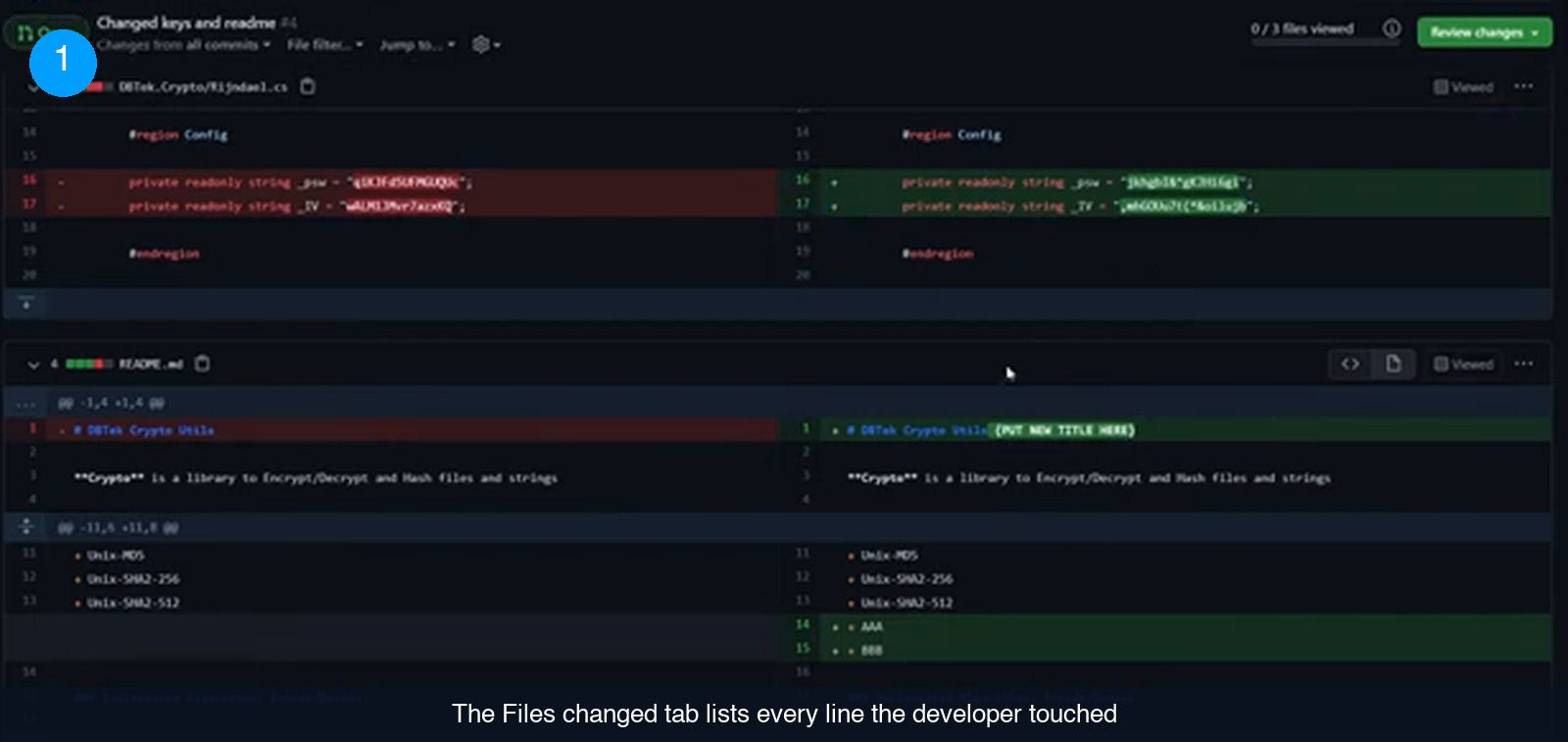
Files changed is where a review actually happens. Removed lines sit on the left in red, added lines on the right in green, each with its line number, grouped file by file. GitHub also keeps a “files viewed” counter in the toolbar so you can tick off files as you work through a long change set.
- Open the pull request and click Files changed.
- Read the whole diff once before typing anything. You are looking for what changed, not for style.
- Note the things you want to raise. In the change set used throughout this guide there are three: secret keys written straight into the source, a README title still holding a placeholder, and a file whose only line says it exists for testing.
Step 2: learn the two buttons before you type a word
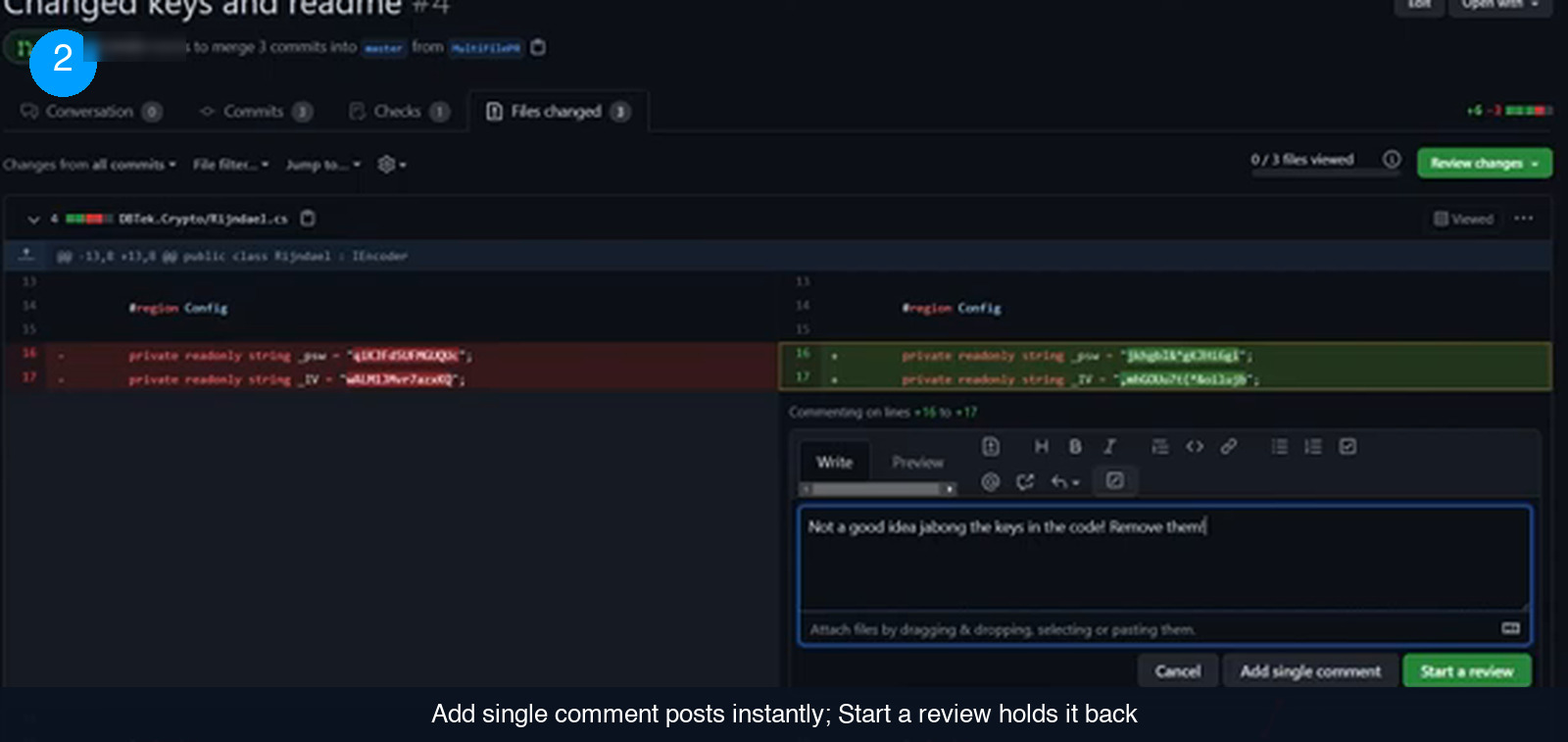
Hover any line in the diff and a blue + appears in the gutter. Click it to comment on that line, or drag across several lines to comment on a range — GitHub confirms the range above the box with a line such as “Comment on lines +16 to +17”. A small editor opens, with Write and Preview tabs and the usual formatting controls.
Underneath it are three buttons, and this is the fork in the road. Cancel throws the note away. Add single comment publishes it there and then. Start a review keeps it to yourself for now. Most people reach for the middle one because it reads like the obvious action, and it costs them twice.
The first cost is noise. The instant you click Add single comment, everyone following the pull request gets a notification — an email if they have set it up that way, otherwise an alert inside GitHub. Three separate comments means three separate notifications for every follower. On a small change set that is mildly annoying. On a large pull request spanning many files, where a careful reviewer might leave a dozen notes, it is a flood, and floods get muted.
The second cost is structure. Feedback posted one comment at a time never becomes a review. It lands in the pull request discussion as a pile of unrelated remarks, with no single place that says what you concluded or what has to happen before this can merge.
Step 3: start the review and watch for the Pending label
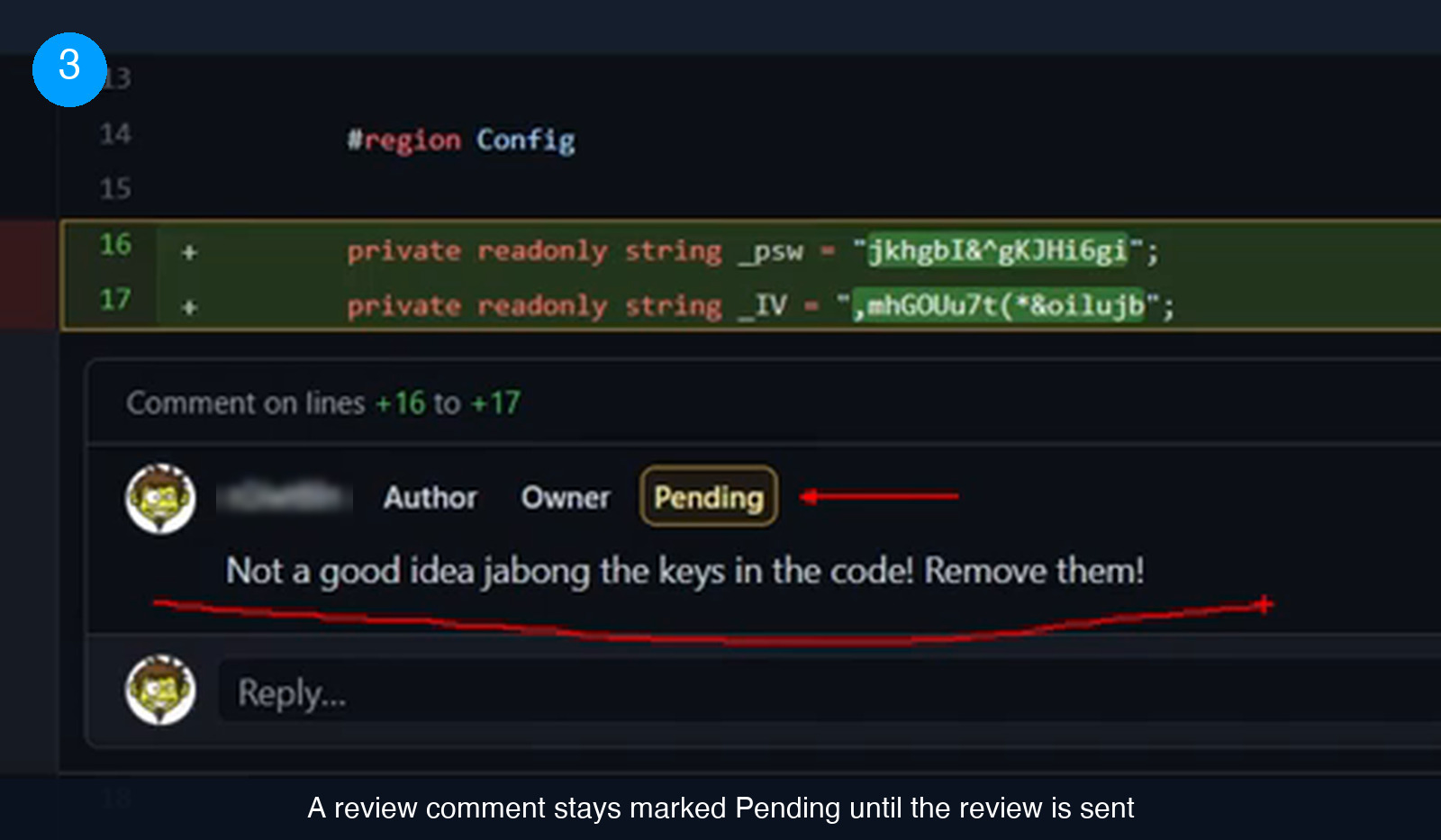
Write the first comment as you normally would, then click Start a review instead. The note stays on screen, attached to the exact lines you selected, but GitHub marks it Pending. Pending means recorded on the pull request and not finalised: no notification has gone out, and nothing has been added to the public discussion.
Two things change in the interface at the same moment, and both are worth knowing:
- The comment carries a yellow Pending badge next to your name, so you can always tell which of your notes have been sent and which have not.
- The green button in the top-right corner switches from Review changes to Finish your review, with a counter showing how many pending comments are waiting.
That counter is the running total of your review. It is also a reminder: a review that stays open is feedback the author never receives.
Step 4: add the rest of your notes to the same review
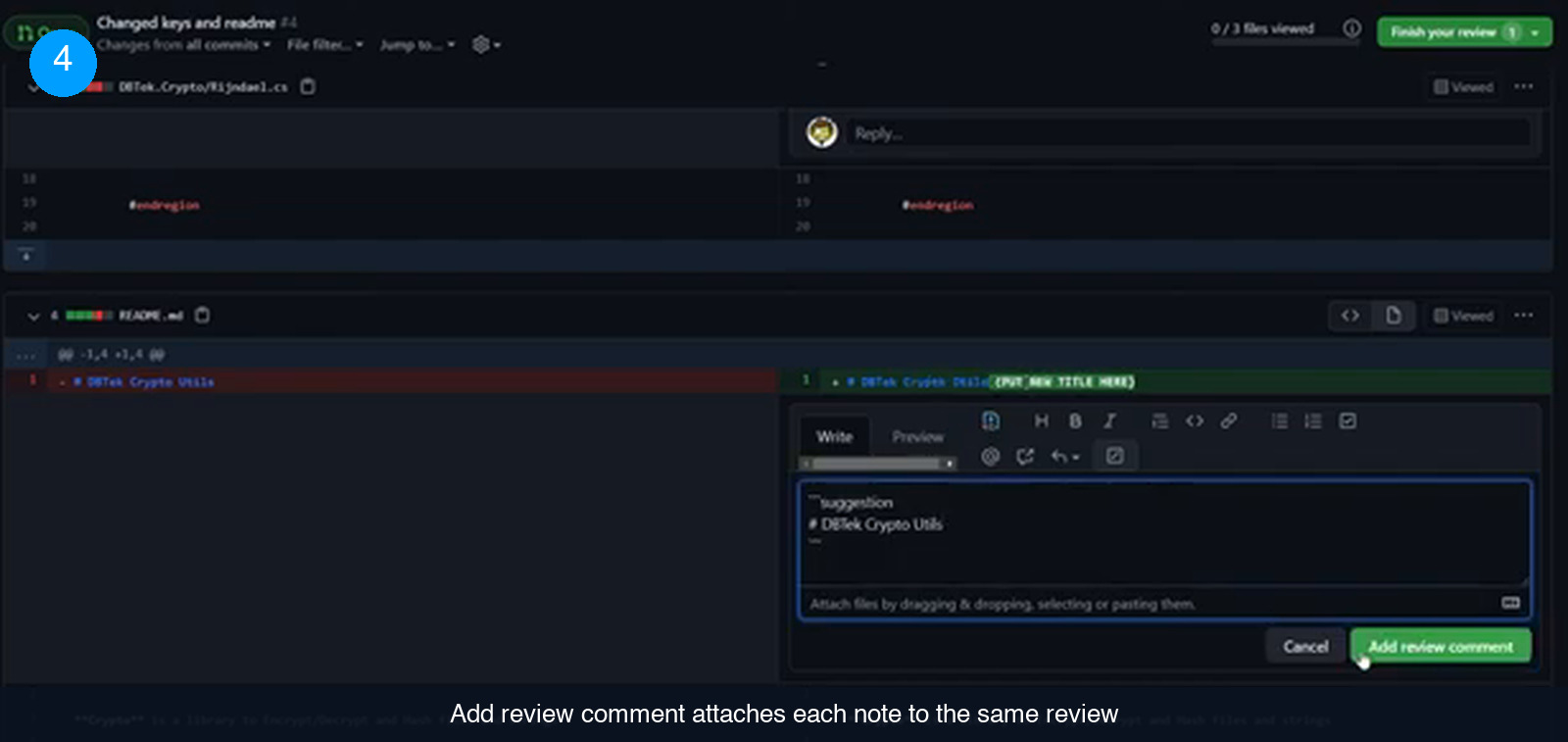
With a review open, the buttons under the comment box change. Where Start a review used to be there is now Add review comment, and every note you add through it joins the review you already started rather than becoming its own event. Each one appears with the same Pending badge, and the counter on Finish your review ticks up.
Work through the rest of the diff and clear the list you made in step one. In the example that means two more comments: one on the README line where the title is still a placeholder, and one on the file the author probably meant to delete before pushing. The editor also accepts a suggestion block, which lets you propose the exact replacement text for a line so the author can apply it directly from the thread.
There is no limit to work around here and no reason to rush. Nothing you write leaves your screen until you decide the review is finished, so you can revisit a file, sharpen a comment, or drop one that turned out to be wrong.
Step 5: finish the review and pick your verdict
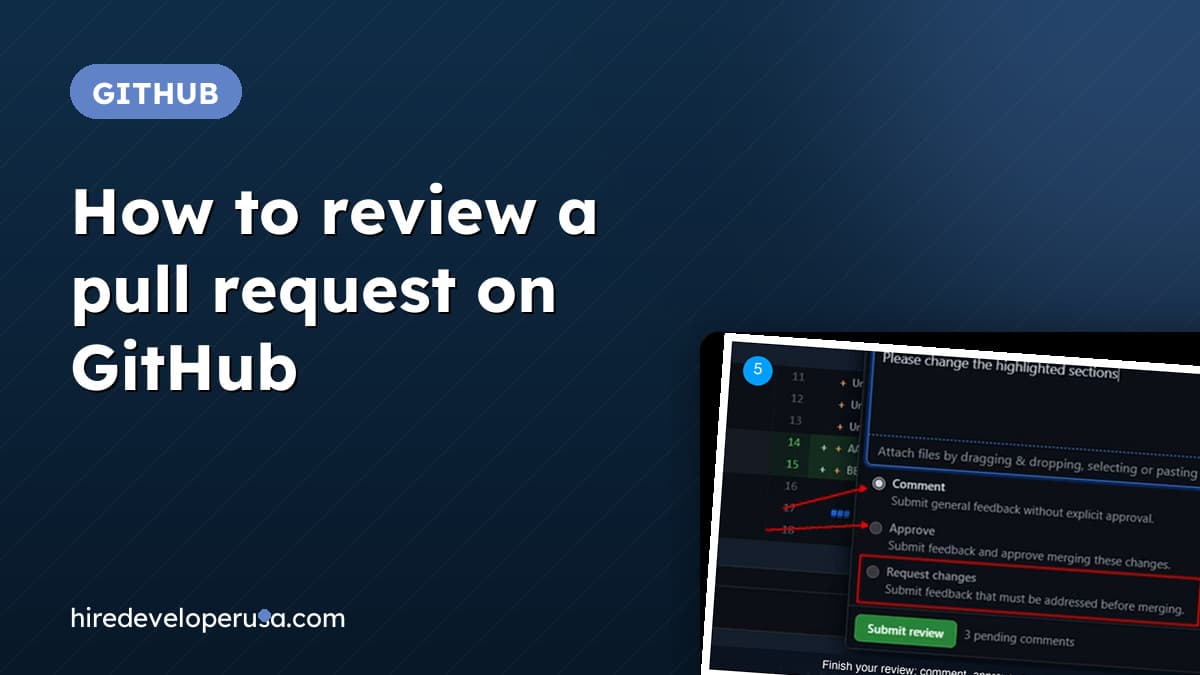
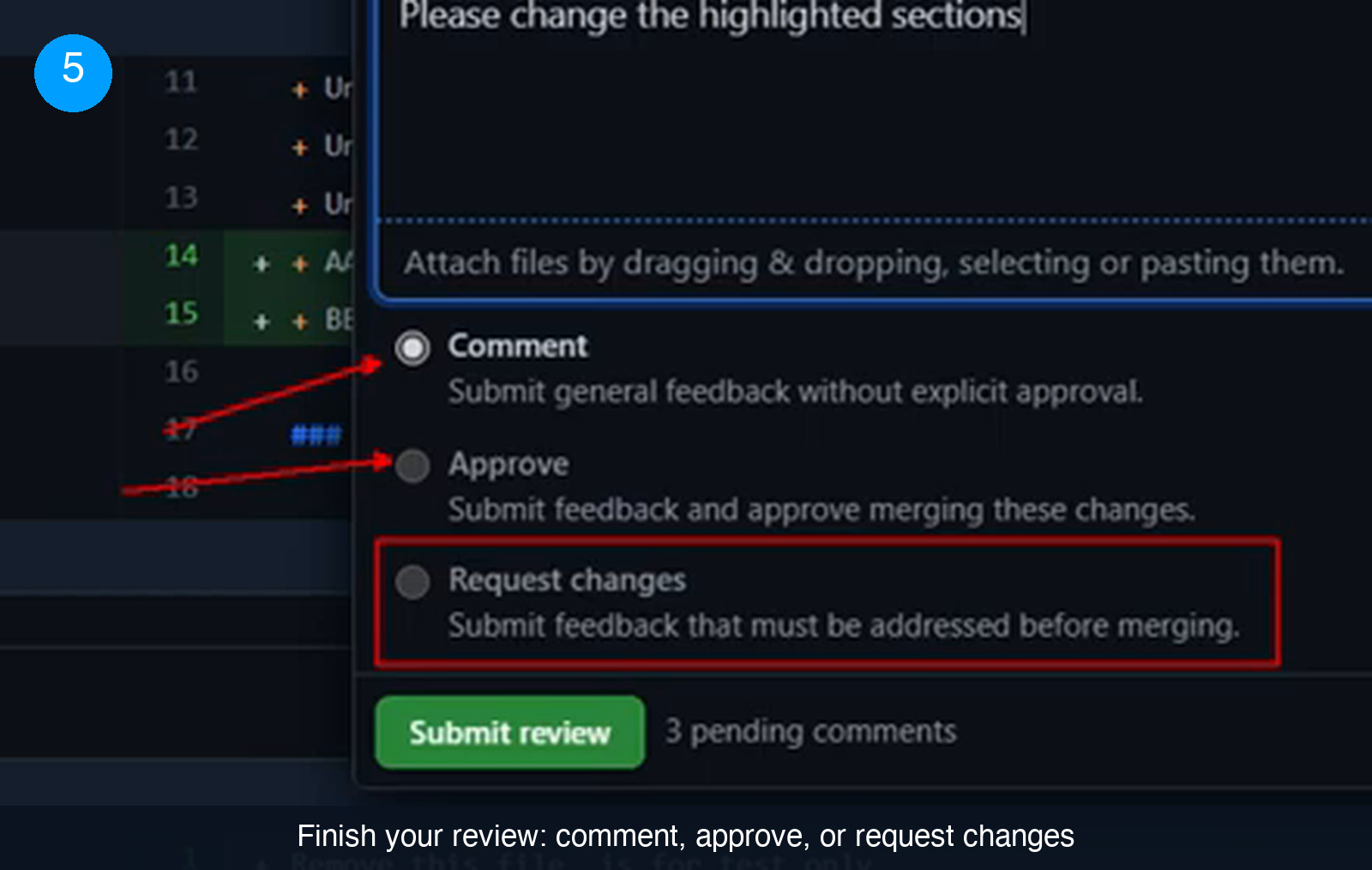
Click Finish your review. A panel opens with a text box at the top for one summary comment covering the whole review — the place for the sentence that ties your notes together, such as asking the author to change the highlighted sections. Below it are three options, and exactly one of them gets submitted with your comments:
- Comment — submit general feedback without explicit approval. Your notes go out, but you have taken no position on whether this should merge.
- Approve — submit feedback and approve merging these changes. Comments and a green light in the same action.
- Request changes — submit feedback that must be addressed before merging. This is the one that puts the ball back in the author’s court and holds the merge until they respond.
Next to the Submit review button, GitHub states how many pending comments are about to go out with it. Check that number against the count in your head before you click: if it says two and you wrote three, one of your notes never made it into the review. Submitting batches all of them and publishes them together.
Step 6: check what the finished review looks like
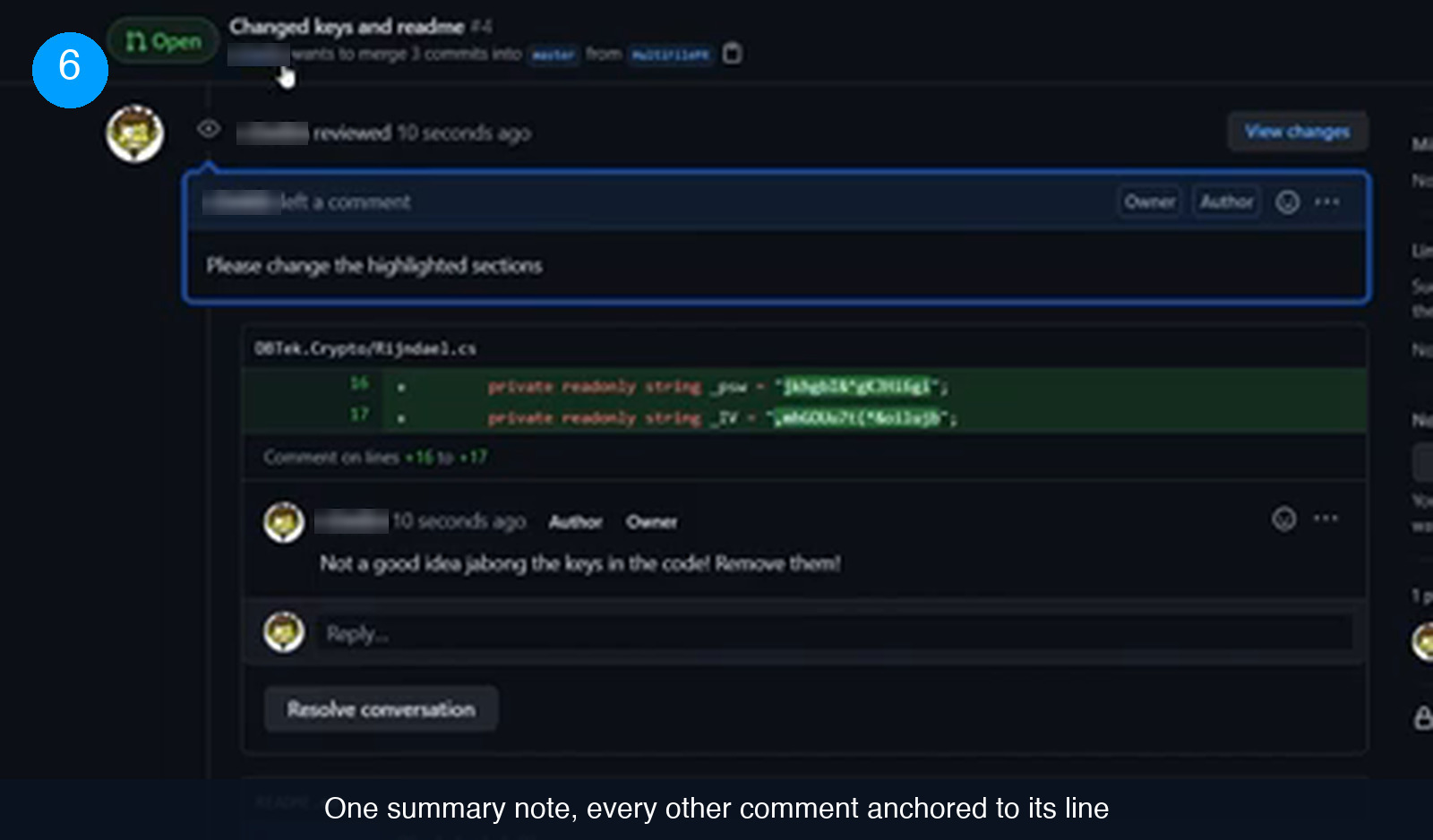
Go back to the Conversation tab. Instead of a scattered pile of remarks, there is one entry saying you reviewed the pull request, with your summary comment at the top. Everything else sits underneath it, each note still attached to the file and the exact line range it was written on, with the original diff hunk quoted above it and a Resolve conversation button on the thread once it has been dealt with.
That is the whole point of the exercise. One comment lives at pull request level; the rest live on the code they are about. The author reads the summary, works down the anchored threads, and resolves them one by one. Take the single-comment route instead and all of that context collapses into the discussion section, where the notes pile up in the order they were typed and nobody can tell which ones still matter.
Mistakes that make a review harder to act on
The button choice is the big one, but a few habits around it do just as much damage to a remote team’s rhythm.
- Publishing comments one at a time. Every Add single comment is a separate notification for every follower of the pull request. Do it a dozen times on a large change set and the people who most need to read your feedback are the ones who will have muted the thread by comment four.
- Leaving the review open. Pending comments go nowhere until you press Submit review. A review you started on Monday and never finished is not soft feedback, it is no feedback.
- Choosing Comment when you mean Request changes. Only Request changes states that the feedback has to be addressed before merging. If your notes are conditions rather than opinions, pick the option that says so.
- Writing review notes in the pull request description. Feedback typed into the discussion box is not attached to any line. Six weeks later nobody can reconstruct which change you were objecting to.
- Reviewing without a shared definition of done. A review argues about a diff; it cannot settle what the feature was supposed to be. That belongs in the project brief you agreed on before the work started.
Check that you have the review flow straight
6 questions on the brief you just read. Pick one answer per question.
1. What happens the moment you click Add single comment?
2. What label does GitHub put on a comment made through Start a review?
3. Once a review is open, which button attaches a new note to that same review?
4. Which of the three verdicts tells the author the feedback must be addressed before merging?
5. What does GitHub display next to the Submit review button?
6. After a batched review is submitted, where do the individual comments end up?
Score: 0 / 6
Make the review the habit, not the exception
None of this takes longer than commenting line by line. It is the same reading, the same notes, the same judgement call at the end — the only difference is that you press Start a review at the beginning and Submit review at the end, and your feedback arrives as one considered opinion rather than a dozen pings. For a distributed team spread across time zones, that difference is the difference between a review that gets read and one that gets muted.
Set the expectation early, ideally in the same conversation where you agree how work gets handed over. If you are still assembling the team that will be sending you these pull requests, we match US companies with vetted full-stack developers who already work this way — see how it works.
Frequently asked questions
Do I need to read code fluently to review a pull request this way?
The flow is identical whatever you are commenting on. In the change set used above, the three issues worth raising were secret keys written into the source, a README title left as a placeholder, and a file whose own contents say it exists only for testing — none of which require reading the logic line by line. Where you cannot judge the code itself, the same review can carry questions rather than instructions, and Request changes still holds the merge until they are answered.
What is the difference between a comment and a review on GitHub?
A comment is a single published remark: it goes out the moment you post it and lives in the pull request discussion. A review is a container. You open it with Start a review, add as many notes as you like while they stay Pending, then submit them all at once together with a summary and a verdict of Comment, Approve, or Request changes.
How many notifications does a batched review send?
Publishing notes one at a time sends a notification per comment to everyone following the pull request — an email where people have configured it that way, otherwise an alert in GitHub. Batching them into a review means nothing leaves your screen while you work, and the comments are published together when you press Submit review.
Can I still approve a pull request after leaving comments on it?
Yes. Approve is one of the three options in the Finish your review panel, and it is submitted with all your pending comments attached. Use it when the notes are observations you are happy to see merged as they are, and Request changes when they are conditions.
Hire vetted talent